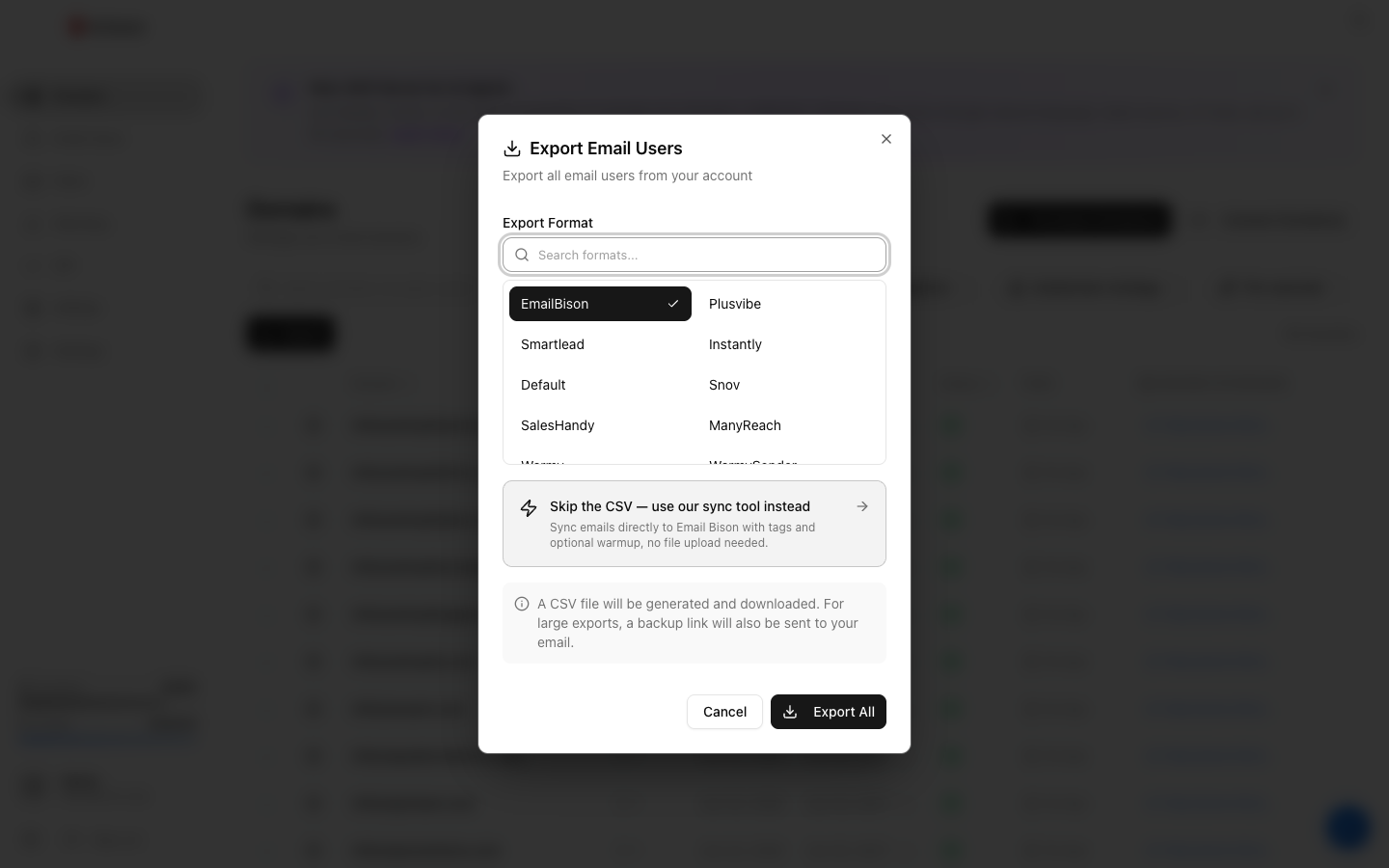
On the Email Users page, click Export. With no rows ticked it exports every mailbox on your account; tick rows first to export only those. Pick your sending tool's format (Smartlead, Instantly, EmailBison, Salesforge, Snov, Reply.io, Woodpecker, Mailshake, SalesHandy and more) or Default for anything else, then click Export. When the file is ready, a Download CSV button appears. The file contains passwords in plain text, so treat it as sensitive. Exports are free.
Why so many formats?
Each sending tool wants a slightly different CSV: different column headers, different ways of listing SMTP and IMAP details, different required fields. Get it wrong and the tool rejects the import, or worse, imports it so only some mailboxes work. Winnr's per-tool formats handle that for you.
Picking a format
- Your tool is listed: pick it. The file imports as-is.
- Your tool isn't listed: pick Default. It's a plain CSV with every connection detail, which most tools can map. See Export as generic CSV.
- Warming-focused tools (Warmy, WarmySender, Plusvibe) are listed if you use one of them instead of Winnr's warming. Use one warming service per mailbox, not both.
If you'd like a format added, the dialog has a link to ask for it.
What's next
Step-by-step
-
1. Open Email Users
App sidebar → Email Users.
-
2. Choose what to export
With nothing ticked, Export covers every mailbox on your account. To export a subset, tick those rows. To export one domain's mailboxes, filter by that domain, then tick the checkbox in the table header to select every row shown. Filters alone don't limit the export; only ticked rows do.
-
3. Click Export
Click Export at the top of the table (it reads "Export (N)" when rows are ticked), or "Export (N)" in the selection bar.
-
4. Pick the format
Search or scroll the Export Format list and pick your sending tool, or Default if it isn't listed. Each format uses the column names and layout that tool expects.
-
5. Download
Click Export (or Export All). When the file is ready, click Download CSV and import it into your tool. The link expires after 15 minutes, so download it right away and export again if you need a fresh one.
Frequently asked questions
Which sending tools are supported?
The format list has AiCloser, EmailBison, Instantly, LeadEngine, MailLead, Mailshake, ManyReach, MasterInbox, PipeLime, Plusvibe, ReachInbox, Reply.io, Salesforge, SalesHandy, SendKit, Smartlead, Smartreach, Snov, Warmy, WarmySender and Woodpecker. For anything else, choose Default. Each has a setup guide under [Export & integrations](/help/export-integrations/).
How long does the download link last?
15 minutes. The file holds passwords, so the link is short-lived on purpose, and nothing is emailed to you. If it has expired, run the export again; exports are free.
Does the file set sending limits or warmup?
Formats with a daily-limit column are pre-filled with 15 cold emails per mailbox per day, the recommended default (keep cold sending at 10 to 20, and each mailbox's total, cold plus warming, at 50 or under). Formats with a warmup on/off column have the sending tool's warmup turned off, because Winnr does the warming; turn it on only if you warm with that tool instead.
Does the export include passwords?
Yes. The file has each mailbox's SMTP and IMAP host, port, username and password in plain text. Store it carefully and don't share it.
What connection settings are in the file?
SMTP port 465 (SSL) and IMAP port 993 (SSL), with the full email address as the username. The SMTP and IMAP host names can differ between mailboxes, so always use the hosts from the file rather than typing one in by hand.
Can I export just one mailbox?
Yes. Tick that one row on the Email Users page and click Export (1).
Can I export by domain from the Domains page?
Yes. Select domains on the Domains page and use Export there to get every mailbox on those domains.
Is there a limit on exports?
There's no cost. Through the API you can run one export every 5 seconds.
If I change a mailbox's password, do I need to re-export?
Yes. An old export still has the old password. Change it, export again, and update your sending tool.
Can I send mailboxes to EmailBison without a file?
Yes. When you pick EmailBison, the dialog offers a direct sync instead of a CSV. See the [EmailBison guide](/help/export-integrations/emailbison.html).