On the Email Users page, click "Add Email User", pick your domain, and enter a name and username (the "sam" in sam@yourdomain.com). Winnr generates a strong SMTP/IMAP password automatically. The mailbox is live within seconds. Export the credentials to your sending tool, or turn on warming first to prepare it for real sending.
One thing about the name "mailbox"
Winnr uses a few words for the same thing. Email user, mailbox, and email account all mean one inbox on your domain, like sam@yourdomain.com. The page is titled "Email Users," the sidebar meter shortens it to "Emails," and plan descriptions say "email accounts." Same thing throughout.
Naming mailboxes well
The name matters more than most people think:
- Real-sounding names beat generic labels.
sam@yourcompany.comoutperformssales@yourcompany.com. Recipients are more likely to open it and filters are more likely to trust it. - One person, one mailbox. Don't share mailboxes across SDRs.
- Keep a consistent format on a domain. If sam@yourcompany.com works, alex@ and jordan@ fit the pattern. Mixing sam@ with sales-team@ looks odd.
- Same person across domains is fine. sam@company-a.com and sam@company-b.com is a common way to add volume.
What you get in the mailbox
Every mailbox has:
- SMTP credentials for sending and IMAP credentials for reading replies (host, port, username, password)
- A unique, auto-generated password
- SPF, DKIM, and DMARC from the domain, with no per-mailbox setup
- A place in the universal inbox, if you turn it on from the Inbox page
The credentials work in any mail client, but the typical use is to load them into a sending tool.
What to do right after creating a mailbox
- Warm it. Turn on warming and let it run for at least 2 weeks (4 on a brand-new domain) while you prepare campaigns.
- Export to your sending tool. Export to Smartlead, Instantly, EmailBison, and others. Set each mailbox to 10 to 20 cold emails a day and 50 total.
- Or do both. Most customers create mailboxes, turn on warming, build campaigns in parallel, then launch when warming has had its time.
When to add more mailboxes
Size by volume, not by pushing each mailbox harder:
- Mailboxes needed = daily cold email target ÷ 15, rounded up (use ÷ 10 to be safer, ÷ 20 at most).
- Domains needed = mailboxes ÷ 5, rounded up.
- Keep a 10 to 15% buffer of spare mailboxes to rotate in.
Calculator: How many inboxes do I need?
What's next
- Set up warming, recommended for new mailboxes
- Export to your sending tool (Smartlead, Instantly, EmailBison, and more)
- View replies in the universal inbox
Step-by-step
-
1. Open the Email Users page
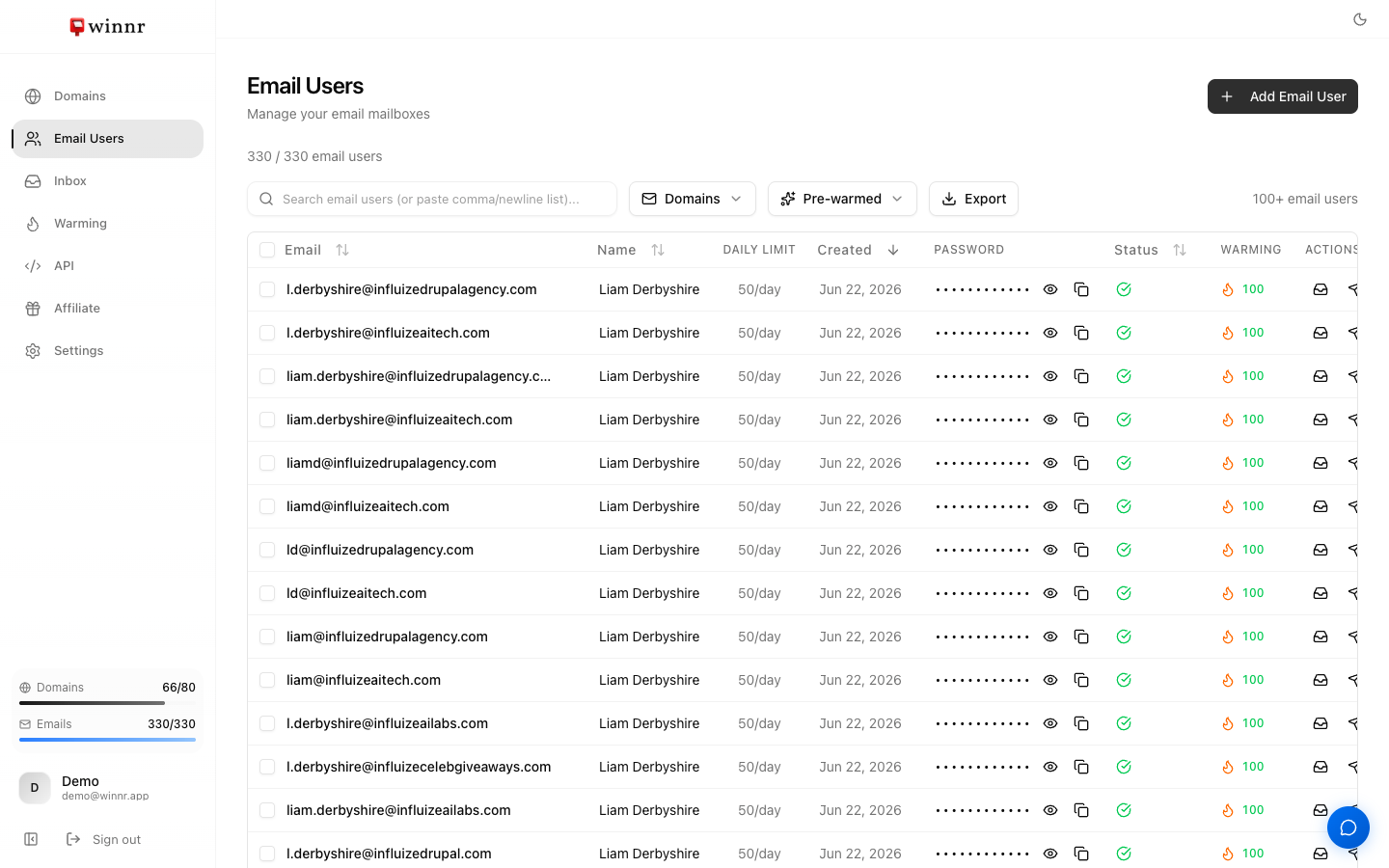
In the sidebar, click "Email Users." Every mailbox across every domain shows up here, with filters for domain, tag, warming status, and health. The counter at the top shows how many of your plan's email users you've used.
-
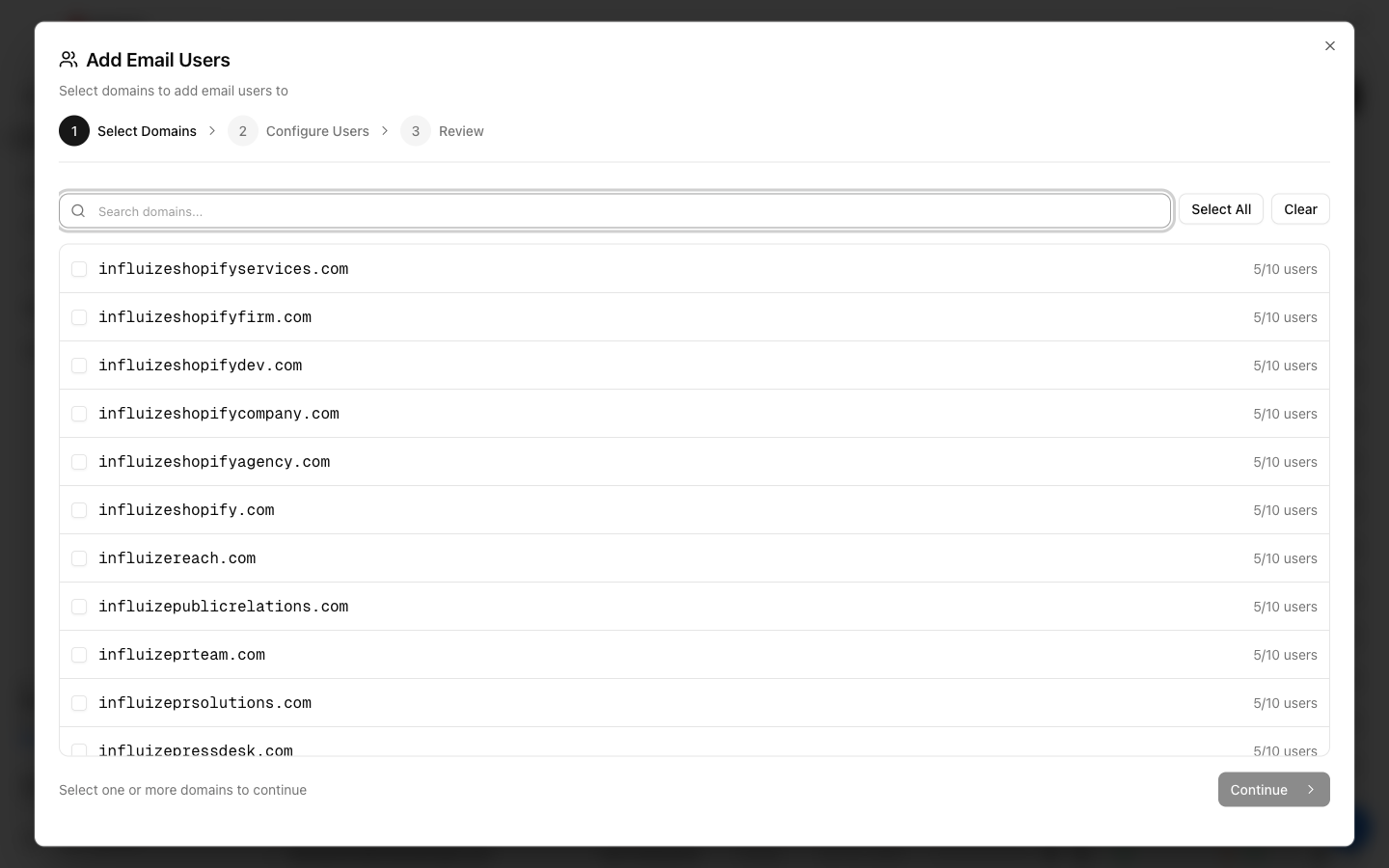
2. Click Add Email User and pick your domain(s)
A three-step dialog opens (Select Domains, Configure Users, Review). Check the domain or domains you want mailboxes on. Each row shows how many of its 10 mailbox slots are used.
-
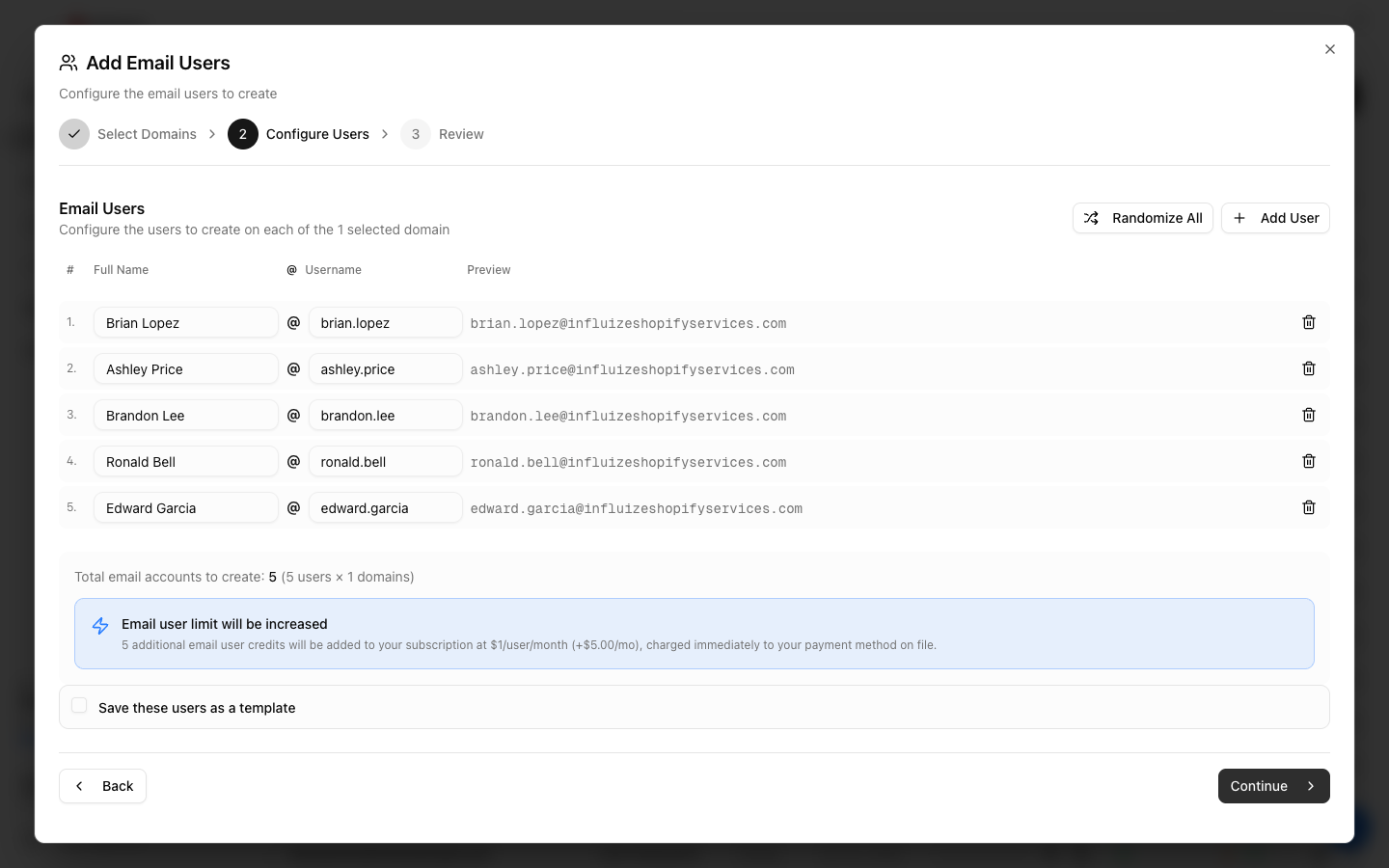
3. Configure the users
Winnr pre-fills real-sounding names and usernames (like brian.lopez@yourdomain.com) and shows a live preview of each address. Edit any name or username, click Randomize All to reshuffle, or Add User for more. First-name usernames look far less spammy than generic labels like info or sales. If the batch takes you past your plan's email-user limit, Winnr adds email-user credits at $1 per mailbox per month and shows the cost before you commit.
-
4. Review and create
Confirm the batch on the Review step. Winnr creates each mailbox with a strong, unique SMTP/IMAP password in a few seconds. The new rows then appear in your Email Users list.
-
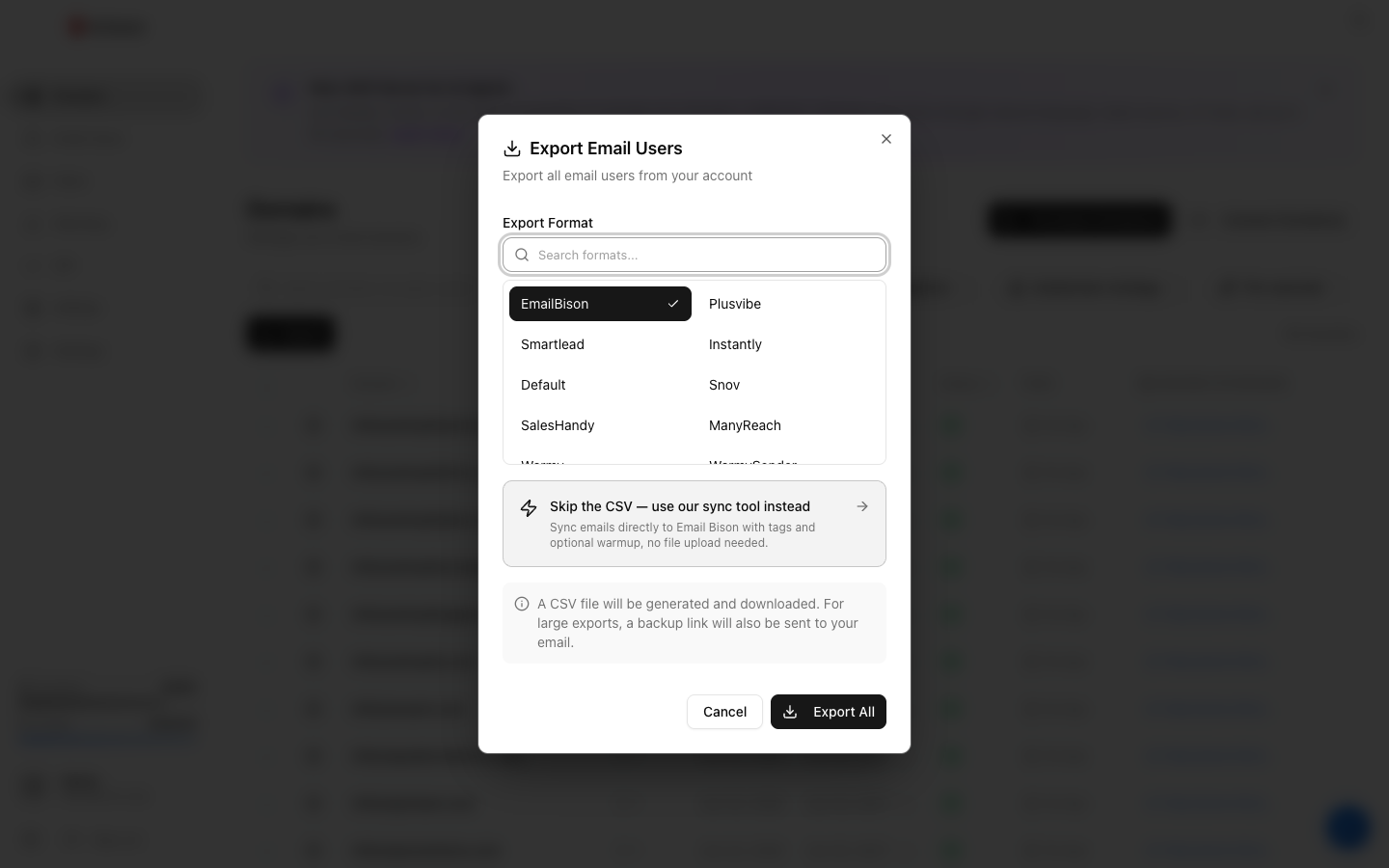
5. Grab the credentials
To connect mailboxes to a sending tool, use Export and pick your platform. Winnr generates a ready-to-import file, or for supported tools syncs directly with no file needed. Each mailbox's username is its full email address; SMTP is port 465 and IMAP is port 993, both over SSL/TLS.
Frequently asked questions
Can I set the password myself?
Not when you create the mailbox. Winnr generates a strong, unique one. You can see and copy it any time from the Password column on the Email Users page (click the eye icon to reveal it), and you can change it later by editing the email user.
How many mailboxes can I create per domain?
Up to 10. Winnr recommends 5 per domain. If you need more sending capacity, add more domains rather than packing more mailboxes onto one.
What names should I avoid?
Winnr doesn't restrict names, but avoid "sales," "marketing," "info," "noreply," and similar. First names (sam@) or first and last names (sam.chen@) look best.
Should I warm the mailbox before sending?
Yes. Warm new mailboxes for at least 2 weeks before cold sending, and 4 weeks on a brand-new domain. Turn it on from the Warming page. It costs $0.60 per mailbox per month.
How many emails can each mailbox send?
Plan on 10 to 20 cold emails per mailbox per day (15 is the normal recommendation), and keep the total per mailbox, cold plus warming, at 50 or under. Set these limits in your sending tool.
Can I move a mailbox to a different domain?
No. Mailboxes are tied to the domain they're created on. Delete it and create a new one on the other domain.