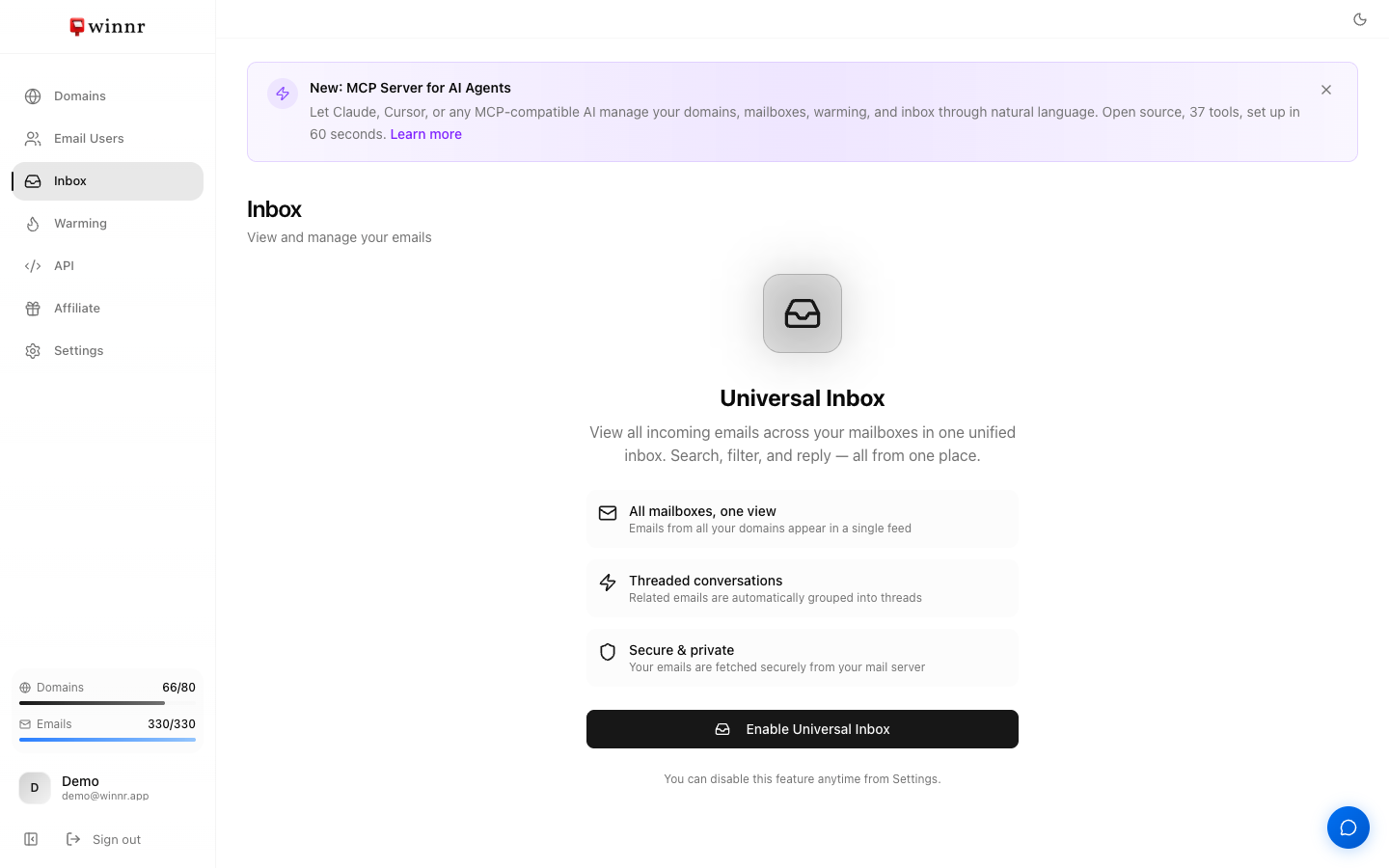
Click Inbox in the app sidebar and then "Enable Universal Inbox". Winnr starts syncing your mailboxes and shows their mail in one threaded feed where you can search, filter by mailbox, date or attachments, reply, reply all, forward, compose new mail, mark read or unread, and delete. Warmup mail is hidden automatically. It's off by default and included in your plan at no extra cost. Mail syncs while you have Winnr open and whenever you click Refresh.
What you can do in the Inbox
- Read everything in one place. Mail from all your domains appears in a single feed, grouped into threads, newest first. An unread count shows next to Inbox in the sidebar.
- Search and filter. Search the loaded messages by sender, recipient, subject or content (scroll to load older mail), or filter by Mailbox, Date range, or Attachment.
- Reply, reply all, forward. Replies go out from the mailbox that received the message and keep the thread together in the recipient's mail client.
- Compose. Start a new email from any of your mailboxes, with CC, BCC and attachments.
- Tidy up. Select threads to mark them read or unread or delete them, or use Mark all read. Bulk deletes run in the background with a progress indicator.
- Share a thread. Copy a link straight to a thread for a teammate.
Hiding warmup mail
Warmup mail from Winnr's own warming is filtered out for you. If you also use another warming tool, click Warmup Exclusions in the Inbox toolbar and add that tool's marker phrase. Messages containing any listed phrase in the subject or body are hidden from the feed. The same list is also under Settings → Account → Warmup Phrases. If you set a warming seed phrase, Winnr adds it to this list automatically.
How fresh is it?
The universal inbox is not a live connection. Winnr syncs your mailboxes while you have the app open (at most every 15 minutes) and whenever you click Refresh. See How email sync works for the details.
When it's worth using
- You have more than a handful of mailboxes. Checking each one separately gets tedious fast.
- You want to answer replies without switching tools. Reply, forward and compose all work from here.
- You're checking a campaign's replies or confirming that a test message arrived.
Turning it off
Go to Settings → Account → Universal Inbox and switch off Sync incoming mail. Syncing stops; nothing is deleted from your mailboxes, and you can switch it back on the same way. Messages already synced drop out of the feed on the normal 30-day schedule.
If you have a webhook subscribed to email.received (or all events), the switch stays on until you remove that event from the webhook or disable the webhook. Those events are produced by the inbox sync, so turning it off would silently stop them.
When to leave it off
- Your sending tool already handles replies. Most sequencers have their own unified reply inbox, which syncs in real time.
- You'd rather Winnr didn't keep copies of your mail. The universal inbox stores synced messages for 30 days.
What's next
Step-by-step
-
1. Open the Inbox page
App sidebar → Inbox. If the universal inbox isn't on yet, you'll see an intro screen.
-
2. Turn it on
Click "Enable Universal Inbox". Winnr starts syncing straight away.
-
3. Wait for the first sync
The first sync pulls the last 7 days of mail from every mailbox. With many mailboxes this can take several minutes. Click Refresh at the top of the thread list to check for new mail.
-
4. Filter and search
Use the search box for sender, subject or content, and the Mailbox, Date and Attachment filters to narrow the list.
-
5. Work your replies
Open a thread to read it, then Reply, Reply all or Forward. Use the compose button to write a new message from any of your mailboxes.
Frequently asked questions
What does the universal inbox do?
It syncs mail from your Winnr mailboxes and shows it in one threaded feed, so you can read and answer replies without logging in to each mailbox. Your mailboxes still work normally in any other mail client or sending tool.
Can I reply from the universal inbox?
Yes. Open a thread and use Reply, Reply all or Forward. The reply is sent from the mailbox that received the message, and you can add CC, BCC and attachments. You can also compose a brand-new email and pick which mailbox it's sent from.
Does it show warmup emails?
No. Warmup mail from Winnr's warming network is hidden automatically. If you use another warming service, add its marker phrase under Warmup Exclusions in the toolbar; any message containing one of those phrases in the subject or body is hidden.
If I delete or mark a message read here, does that change the real mailbox?
Yes. Delete removes the message from the mailbox itself, and read or unread status is set on the mailbox too, so your sending tool or mail client sees the same state.
Does it include external mailboxes I imported for warming?
No. The universal inbox covers mailboxes hosted by Winnr. Imported external accounts are warming-only.
Is the universal inbox free?
Yes, it's included in both the Startup and Enterprise plans at no extra cost. Accounts with more than 5,000 mailboxes can't use it.
Does Winnr store my emails?
Yes. Synced messages are kept in Winnr so the feed and search work, and they drop out of the feed 30 days after they were received. The messages in the mailbox itself are not affected by that.
How do I turn the universal inbox off?
Go to Settings → Account → Universal Inbox and switch off "Sync incoming mail". Winnr stops syncing mail into the Inbox page. Your mailboxes keep receiving mail as normal, and you can switch it back on at any time. If you have a webhook subscribed to email.received, it can't be switched off until you remove that event from the webhook or disable it, because those events come from the same sync.
Can the Winnr Agent refresh the inbox?
Yes. Ask the Winnr Agent in the chat panel to refresh your inbox and click Confirm.