In Winnr go to Email Users → Export, choose Smartreach, click Export, then Download CSV. In SmartReach, open the email-account settings, upload the CSV, map the fields and start the import. The file sets max_emails_per_day to 15 with a 600 to 1200 second (10 to 20 minute) gap between sends.
SmartReach is a sales-engagement platform that connects SMTP/IMAP mailboxes for multichannel outreach and reply syncing. Winnr provisions and warms the mailboxes; SmartReach runs the campaigns.
What's in the SmartReach file
| Column | What Winnr puts in it |
|---|---|
| The full email address | |
| first_name | First word of the display name |
| last_name | Rest of the display name |
| imap_host | That mailbox's mail server |
| smtp_host | That mailbox's mail server |
| imap_port | 993 (SSL) |
| smtp_port | 465 (SSL) |
| imap_password | The mailbox password |
| smtp_password | The mailbox password (same as IMAP) |
| imap_username | The full email address |
| smtp_username | The full email address |
| max_emails_per_day | 15, or the mailbox's Winnr daily send limit if lower |
| min_delay_seconds | 600 |
| max_delay_seconds | 1200 |
| bcc | Empty |
| cc | Empty |
| email_signature | Empty |
Check before you upload
- Field mapping. IMAP and SMTP columns alternate in this layout. During the mapping step, confirm imap_ fields go to IMAP and smtp_ fields to SMTP.
- Delays. The 600 to 1200 second gap is deliberately slow. If your sending window is short, 15 sends may not fit; widen the window in SmartReach rather than cutting the delay sharply.
- bcc, cc, email_signature. All empty. Set them in SmartReach if you use them.
Daily limit in SmartReach
SmartReach takes the per-mailbox quota from max_emails_per_day, pre-filled with 15. Keep cold sending at 10 to 20 per mailbox per day and each mailbox's total, cold plus warming, at 50 or under. Warm new mailboxes for at least two weeks before they send cold.
What's next
Step-by-step
-
1. Select the mailboxes in Winnr
Open Email Users and tick the mailboxes you want in SmartReach. To take one domain, filter by it and tick the header checkbox. With nothing ticked, the export includes every mailbox in your account.
-
2. Export in the Smartreach format
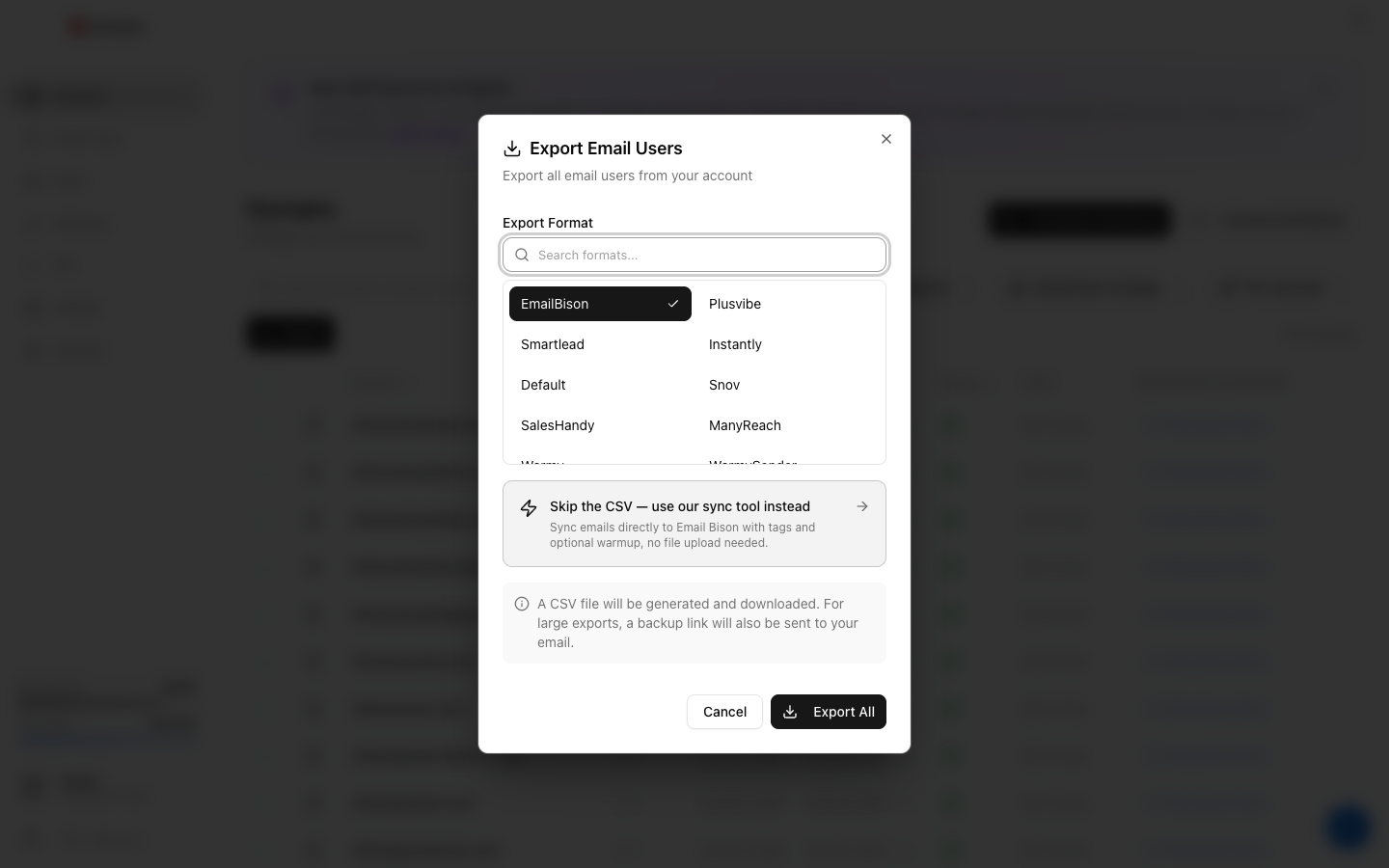
Click Export, choose Smartreach under Export Format (the search box finds it quickly), then click the Export button.
-
3. Download the CSV
Click Download CSV. The link lasts 15 minutes, so export again if it has expired. The file holds passwords in plain text, so keep it private.
-
4. Upload and map
In SmartReach, open the email-account settings, upload the Winnr file, map the fields and start the import.
-
5. Confirm every mailbox connected
Check the import finished and every mailbox is connected, and adjust any daily quota you want different from 15.
Frequently asked questions
What sending pace does the file set?
max_emails_per_day 15, with min_delay_seconds 600 and max_delay_seconds 1200, so sends are 10 to 20 minutes apart. At that pace 15 emails take roughly two and a half to five hours.
Is this the same as the ReachInbox format?
The columns are identical, but the SmartReach file uses a 600-second minimum delay where ReachInbox's uses 300. Pick the format named after the tool you are importing into.
Does SmartReach read replies over IMAP?
Yes. It syncs replies over IMAP, and the file includes imap_username, imap_password, imap_host and imap_port.
Should I warm on Winnr first?
Yes. Warm new mailboxes with Winnr's built-in warming ($0.60 per mailbox per month) for at least two weeks before adding them to live SmartReach campaigns.
The import reports failed accounts. What now?
Check imap_password and smtp_password for those rows. A password changed in Winnr after you exported will not match the file. Export those mailboxes again and import them. If a fresh export still fails, see the mailbox authentication troubleshooting guide.