In Winnr go to Email Users → Export, choose Mailshake, click Export, then Download CSV. In Mailshake, add a mail account, choose CSV Bulk Import and upload the file. The file sets daily_limit to 15 and warmup_enabled to FALSE, so a mailbox Winnr warms is not warmed twice.
Mailshake is an email-outreach platform with sequences, reply detection and optional warm-up. Winnr provisions and warms the mailboxes; Mailshake runs the campaigns.
What's in the Mailshake file
| Column | What Winnr puts in it |
|---|---|
| email_address | The full email address |
| from_name | The mailbox's display name |
| smtp_host | That mailbox's mail server |
| smtp_port | 465 (SSL) |
| smtp_username | The full email address |
| smtp_password | The mailbox password |
| imap_host | That mailbox's mail server |
| imap_port | 993 (SSL) |
| imap_username | The full email address |
| imap_password | The mailbox password (same as SMTP) |
| warmup_enabled | FALSE |
| daily_limit | 15, or the mailbox's Winnr daily send limit if lower |
Check before you upload
- warmup_enabled. Keep FALSE if Winnr warms the mailbox. Running both pushes the mailbox past 50 emails a day.
- daily_limit. 15 is the starting point. Lower it for brand-new domains if you are easing in.
- SSL. There is no encryption column. If Mailshake asks, choose SSL: 465 for SMTP and 993 for IMAP.
- Hosts per row. Keep each row's own smtp_host and imap_host; mailboxes on different domains can sit on different mail servers.
Daily limit in Mailshake
Mailshake's daily_limit caps campaign sends per mailbox. Keep it at 10 to 20 (15 is the file's default) and each mailbox's total, cold plus warming, at 50 or under. Warm new mailboxes for at least two weeks before they send cold.
What's next
Step-by-step
-
1. Select the mailboxes in Winnr
Open Email Users and tick the mailboxes you want in Mailshake. To take one domain, filter by it and tick the header checkbox. With nothing ticked, the export includes every mailbox in your account.
-
2. Export in the Mailshake format
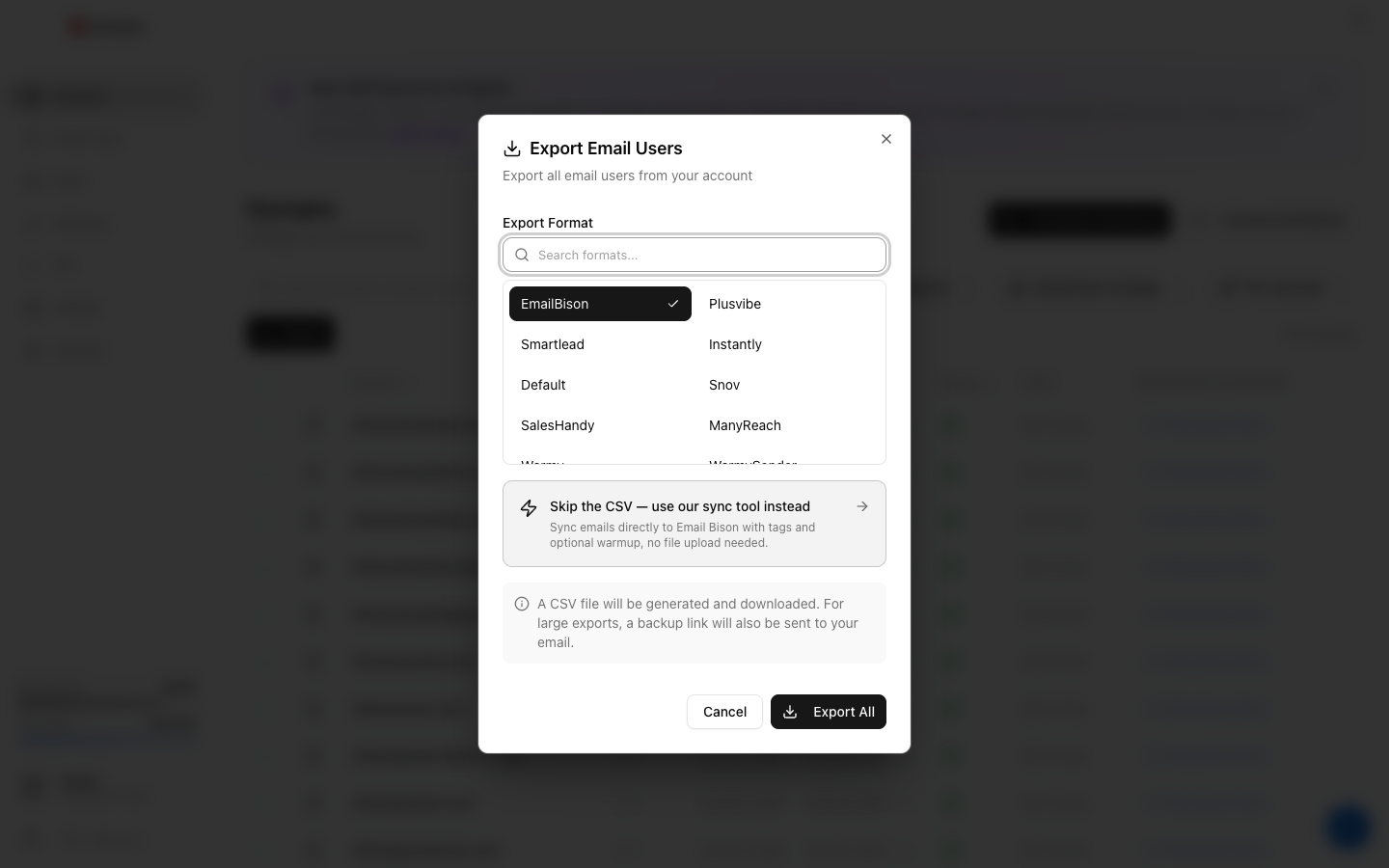
Click Export, choose Mailshake under Export Format (the search box finds it quickly), then click the Export button.
-
3. Download the CSV
Click Download CSV. The link lasts 15 minutes, so export again if it has expired. The file holds passwords in plain text, so keep it private.
-
4. Check warm-up and limit
The file sets daily_limit to 15 and warmup_enabled to FALSE. If Mailshake does the warming instead of Winnr, change warmup_enabled to TRUE.
-
5. Upload with CSV Bulk Import
In Mailshake, add a mail account and choose CSV Bulk Import, then upload the file.
-
6. Confirm every mailbox connected
Once the import finishes, check each mailbox's connection status in Mailshake before adding it to a campaign.
Frequently asked questions
What daily limit does the file set?
15, or the mailbox's Winnr daily send limit if that is lower. Keep cold campaigns at 10 to 20 per mailbox per day and each mailbox's total, cold plus warming, at 50 or under. Change daily_limit before you import, or in Mailshake afterwards.
Should I use Mailshake's warm-up or Winnr's?
Pick one per mailbox. Winnr's built-in warming is $0.60 per mailbox per month; if you use it, leave warmup_enabled at FALSE. Change it to TRUE only if Mailshake is doing the warming instead.
Does Mailshake need IMAP?
Yes. Mailshake uses SMTP to send and IMAP to detect replies. The file includes both, with the full address as the username on each.
Where is the signature?
The Mailshake file has no signature column. Add your signature in Mailshake after import.
Mailshake shows a mailbox as disconnected. What now?
Check smtp_password and imap_password for that row. A password changed in Winnr after you exported will not match the file. Export that mailbox again and re-import it. If a fresh export still fails, see the mailbox authentication troubleshooting guide.